Preparing iPhone HEIC photos for AI image tools: a local conversion workflow
You have iPhone HEIC photos ready for an AI editing tool, but the file picker rejects them. The tool accepts JPG, while your pictures end in .heic. Before you can remove the background or try an edit, you need a compatible copy.
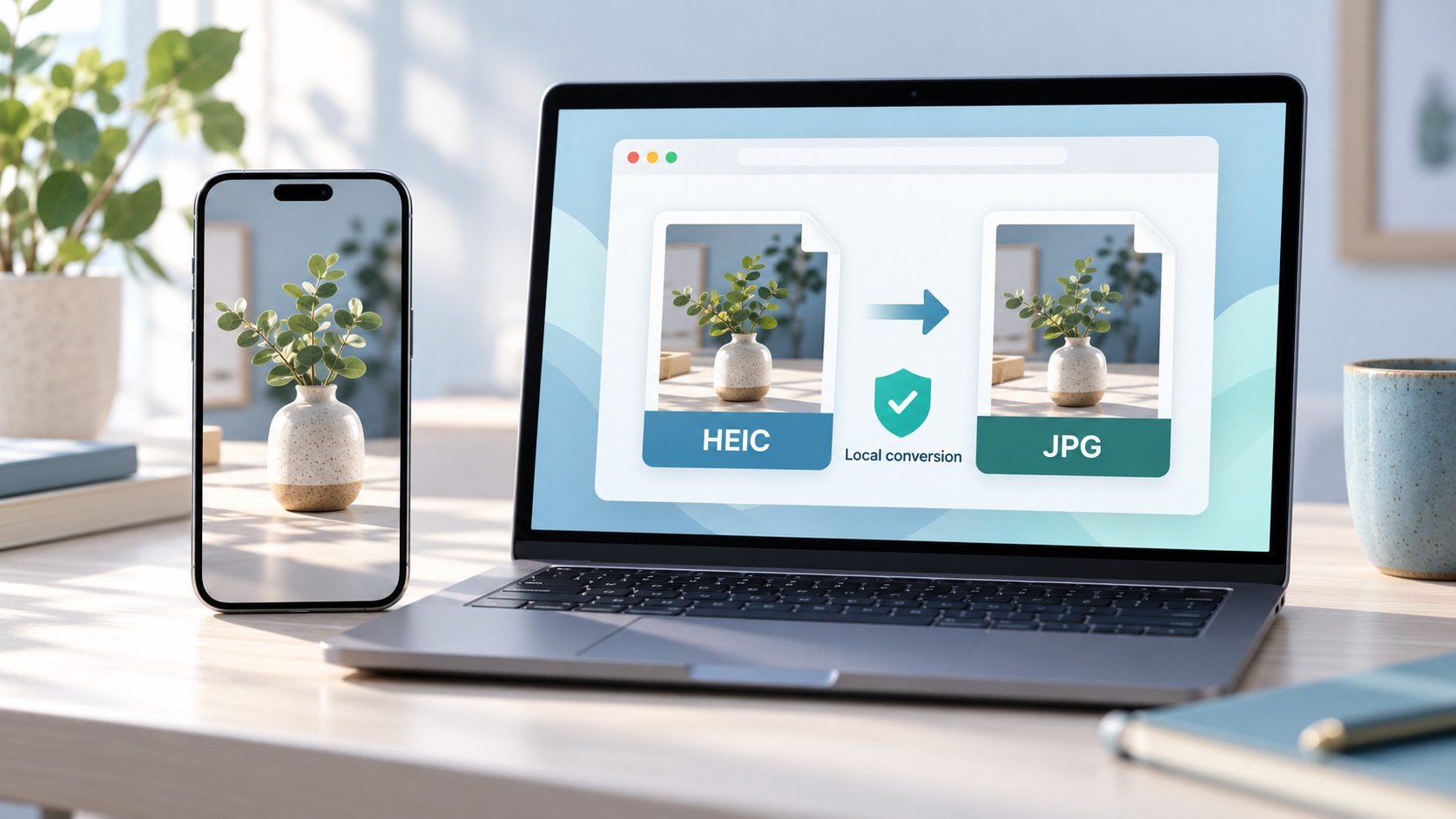
An upload-based converter would receive the photo before the AI editor does. You can avoid that extra transfer by making the JPG in your browser. After conversion, you still choose whether to send the picture to an AI service.
Check whether your iPhone HEIC photos need converting
Start with the receiving tool’s supported formats. Some apps can open HEIC directly; others ask for JPG or PNG. If HEIC already works, keep using the original. Converting a file that the editor can read adds work without fixing a problem.
HEIC is common in iPhone photo libraries. Changing its filename from .heic to .jpg does not change the encoded image. An app that could not decode the original still needs a converter to produce a real JPG.
For an ordinary photograph among your iPhone HEIC photos, JPG is a practical choice when the next app requests it. Keep the HEIC too. JPG conversion uses lossy encoding, and a compatible copy may not carry everything stored in the original. HEIC-specific HDR information, depth data, or other auxiliary images may have no equivalent in the JPG output.
What local conversion changes
A web tool can process an image locally even though you open it through a website. The page loads software into the browser, and that software reads the image on your device. In a local conversion mode, the photo does not need to travel to a server for decoding and JPG export.
Local conversion avoids transferring iPhone HEIC photos to a server and fetching the converted images back across the network. That can save waiting on a slow connection. Conversion speed still depends on the device: an older phone may take longer to decode and export an image than a capable server.
The conversion service does not receive the source photo in this workflow. If you later upload the JPG to a cloud AI editor, however, that editor receives it under its own policies. Check the destination before sharing a personal or unpublished photo.
A local HEIC-to-JPG workflow with Morphio
Morphio’s HEIC-to-JPG converter has a Privacy mode that processes iPhone HEIC photos and HEIF images in the browser. Privacy is the default. It does not upload those images, consume conversion credits, or impose a daily or monthly conversion allowance. Practical capacity depends on the browser and device, including available memory.
Open the converter and check that Privacy is selected before adding files. Choose one or more HEIC or HEIF images. Conversion starts automatically after selection. Each item has its own progress and becomes available to download when it finishes.
Every source image produces a separate JPG. You can download the successful results individually, or use the grouped ZIP download when several are ready. As a result ZIP is only a convenient download package; it does not combine the photos into one image.
ZIP input is a separate feature. Morphio’s Cloud mode accepts ZIP archives and uploads files for server-side processing. If your goal is to keep conversion local, select the individual images in Privacy instead of switching to Cloud to process an archive. Files uploaded in Cloud are deleted by default after one day.
Check the JPG before an AI tool uses it
Open a converted picture from your iPhone HEIC photos before sending the whole batch onward. Check its orientation and whether the parts you care about are visible. Look closely at a bright window or small lettering on a label. If either looks wrong in the JPG, compare it with the original before continuing. JPG cannot store transparency, and the converted picture may also look different where the source depends on HEIC-specific information.
Local processing does not mean that metadata is removed. Morphio preserves metadata that the destination format and conversion path support. Depending on the source, that can include camera information, capture time, or location. Review those fields separately if you intend to share the exported image.
Also check what is visible in the picture itself. A delivery label on a desk or a document in the background remains visible after a format change. Remove material you do not want to send before uploading the picture to another service. A converter changes the file format; it does not automatically redact the scene.
Keep the original iPhone HEIC photos through the editing process
Imagine preparing a set of product photos for a background-removal tool. Keep the original HEIC files in one folder and put the converted JPG copies in another. Try one JPG in the editor first. Check the result around fine edges and small lettering before processing the rest.
Keeping both versions of your iPhone HEIC photos gives you a starting point if the edit goes wrong. If a logo becomes distorted or a cutout loses part of the product, you can return to the original photograph. Avoid repeatedly saving intermediate JPGs when you can continue working from a single source copy.
Use filenames that distinguish the conversion from the AI edit. For example, keep a converted copy as product-front.jpg and the edited result as product-front-background-removed.jpg. Keep the originals out of the output folder so a later cleanup does not remove them by mistake.
When a browser struggles with a batch
Unlimited Privacy use does not mean unlimited processing power. Large iPhone HEIC photos and many simultaneous tasks can put pressure on browser memory. A device may slow down or a file may fail even though there is no usage quota blocking it.
If a batch becomes difficult to handle, work with fewer images at once and download the results that finish. Morphio provides Retry for failed items and Continue when retryable items remain. Check an unsuccessful file before repeatedly trying a large group.
For a large set of iPhone HEIC photos, try a few representative photos before choosing the rest. Include one of the largest files and any picture whose lighting looks difficult. Keep track of which originals already have a downloaded result, particularly if you split the work into several groups. The lack of a daily quota means you can process another group when the browser has finished the first.
Choose which pictures the AI editor receives
Format conversion does not need an AI model. Once the JPGs are ready, choose the specific pictures needed for your edit instead of uploading the whole folder. If an editor rejects a JPG too, check its file-size and dimension requirements before converting the original again. The extension is only one part of compatibility.
For iPhone HEIC photos that need no AI editing, stop after the local conversion. You have a JPG to use in the app that requested it, and the original HEIC remains available for a future export.