ChatGPT ‘Error in Message Stream’ Explained: What It Means and How to Fix It
Key Takeaways
- “Error in message stream” means the live delivery of a ChatGPT reply stopped before the answer was finished. It is a delivery failure, not a judgement about your prompt or your account.
- ChatGPT does not send a finished answer all at once. It streams the reply piece by piece, and the error appears when that stream breaks partway through, often leaving a half-written answer on screen.
- The most common causes are an incident or heavy load on OpenAI’s side, an unstable internet connection, a VPN or browser extension interfering with the connection, or a conversation that has grown very long.
- The first three steps fix most cases: click Regenerate or Retry once, refresh the page or restart the app, and check OpenAI’s status page at status.openai.com. If the status page shows an incident, waiting is the only fix.
- OpenAI has not published a definitive list of causes for this exact message, and its Help Center troubleshooting article does not list “error in message stream” by that exact wording. The causes in this article are therefore drawn from OpenAI’s guidance on related network and streaming errors, and from independent troubleshooting guides, and they are labelled as such.
- Copy any partial answer before you retry. Once you regenerate, the half-finished text can be replaced, and you may lose the part that did arrive.
What the error actually looks like
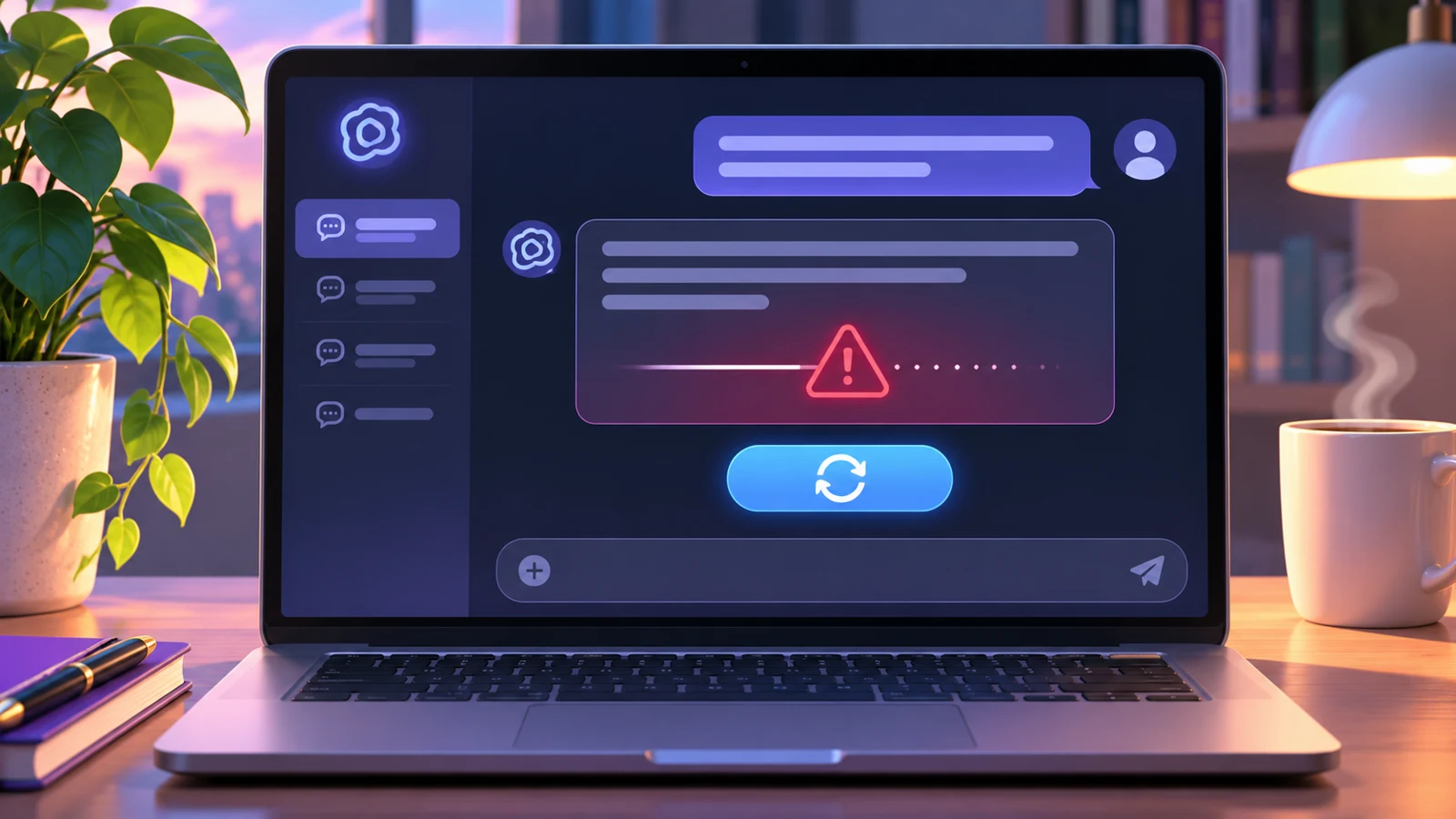
You send a prompt. ChatGPT starts answering. The text appears gradually, word by word, exactly as it normally does. Then it stops, mid-sentence, and a short message appears in place of the rest of the answer: “Error in message stream”, sometimes with a Retry or Regenerate button underneath.
That half-finished state is the most useful clue about what has happened. The model did not refuse your prompt. It did not produce a wrong answer. It started producing an answer, and the delivery of that answer was interrupted before it finished. Anything that did arrive on your screen is real output from the model, and it is worth copying before you do anything else, because regenerating the response can replace it.
The error is also specific to the moment of generation. It is different from an error that appears before you send a message, such as a login failure or a blank screen, which tends to point to an account or app problem. It is different from a message that appears after a completed answer, such as a content warning. A mid-stream error points to something going wrong during the live generation and delivery process itself.
Search interest in the phrase has risen about 250 percent in the past seven days, according to Google Trends data, and searches for “is chatgpt down” are up about 40 percent over the same period. That rise suggests many people are seeing the error at the same time, which is consistent with a period of heavy load or a series of incidents on OpenAI’s side, but search volume alone does not prove an outage. The rest of this article explains how to tell the difference for yourself.
What “streaming” means, and why it breaks
To understand the error, it helps to understand how ChatGPT delivers answers. It does not wait until the full answer is generated and then send it to you in one block, the way a search engine sends a results page. Instead, it streams the answer to your browser or app piece by piece, as the model generates it. That is why text appears gradually, and why you can often start reading the beginning of an answer before the end has been written.
Streaming works through a live connection between your device and OpenAI’s servers, and that connection has to stay open for the whole time the model is generating a response. The connection can be long-lived, lasting seconds or minutes for a long answer, and it is more fragile than an ordinary page load. A brief drop in your Wi-Fi, a switch between Wi-Fi and mobile data, a VPN that reconnects, or a server-side timeout can break it, even when the rest of your internet connection seems fine.
When the stream breaks, the model may have finished generating the answer, or it may have been cut off mid-sentence. Either way, your browser or app never receives the closing signal that marks a complete response, so the interface flags the message as broken. That is the error you see.
Three practical consequences follow from this. First, the error tells you where the failure happened, in the delivery of the response, not why it happened. The same message can appear for several different causes. Second, the partial text is usually usable, and should be saved before you retry. Third, the cause is often transient. Many instances clear on their own within seconds or minutes, especially when OpenAI is rolling out a change or absorbing heavy demand.
For a wider guide to using ChatGPT safely and well, including what not to share with it, see our guide to 5 things to never tell ChatGPT.
Is ChatGPT down, or is it just you?
This is the first question to answer, because it determines everything else. If ChatGPT is down, or if there is an incident affecting the part of the service you are using, then no change you make on your own device will fix the problem. If ChatGPT is working for everyone else, then the fault is more likely on your side, and the fixes in the next section are worth trying.
Start with OpenAI’s official status page. That page lists the current state of ChatGPT and its components, and any open incidents. The status page splits ChatGPT into many components, including Conversations, Login, File uploads, Voice mode, GPTs, Image Generation, Deep Research and others. Read the incident title, not just the overall banner. An incident that names the Conversations component, or your plan, region or app, is directly relevant. An incident affecting only Image Generation, for example, is not.
If the status page shows an incident affecting Conversations, stop troubleshooting your own setup and wait. The error is on OpenAI’s side, and it will clear when the incident is resolved. You can check back periodically, or try again after a short wait, but changing browsers, clearing caches or restarting your router will not help while the incident is open.
If the status page says the service is fully operational, the fault is more likely local, or it may be a transient load problem that has not been listed as an incident. Independent guides agree on the same order of checks: retry first, then check the status page, then test your VPN, extensions and network. OpenAI’s own guidance notes that a model can be unavailable with no incident listed, so a green status page does not guarantee the problem is on your side. But it does make a local cause more likely, and it is the right point to start working through the fixes below.
There is a second, informal check that is often useful. Ask whether the error appears in every chat or only in one. If it appears in every chat, on every device and every network you try, that points to a service-wide problem, even if the status page has not yet listed it. If it appears in only one conversation, that points to a problem with that conversation, usually its length or its attachments, and starting a new chat is the fastest fix. If it appears on one device or network but not another, that points to a local network or browser problem, and switching networks is the fastest way to confirm it.
Third-party status trackers, which collect user reports, can also help, but they should be treated as a supplement to the official status page, not a replacement for it. They can show whether many other people are reporting problems at the same time, but they cannot tell you whether the problem is in the Conversations component, and their figures are based on reports rather than on OpenAI’s own monitoring.
The most common causes, in plain language
OpenAI has not published a definitive list of causes for the “error in message stream” message. That is an important fact, and it shapes how this section is written. The causes below are drawn from OpenAI’s Help Center article on troubleshooting ChatGPT error messages, which covers related errors such as “a network error occurred” and “an error occurred while connecting to the websocket”, and from independent troubleshooting guides, including a detailed guide to the message stream error, that have tested the error against those causes. They are the best available explanation, but they are not an official list, and no single cause explains every case.
Server-side load or an incident
When OpenAI’s infrastructure is under heavy demand, especially just after a new model is released or during peak usage hours, streaming connections are more likely to time out or be dropped. This is the most likely cause when the error returns every few minutes, affects all plans at the same time, including free, Plus and Pro, and appears in every conversation. OpenAI’s own incident history shows that ChatGPT conversation errors do occur in clusters, and that many of them resolve within a couple of hours. A third-party count of OpenAI’s public incident list, covering the year to October 2026, found that 18 of 31 ChatGPT conversation incidents ended within two hours, and 6 ran past four hours. Those figures come from a count of the public list, not from OpenAI, and they are included here to give a sense of scale, not as a guarantee for any single incident.
An unstable internet connection
Streaming keeps a single connection open for a long time, so it breaks where an ordinary page load would get through. A brief drop in Wi-Fi, a switch between Wi-Fi and mobile data, a weak mobile signal, or a corporate network that interrupts long-lived connections can all break the stream. This is the most likely cause when the error appears on one network but not another, or when it appears on a mobile connection but not on Wi-Fi, or vice versa.
A VPN, proxy or security filter
VPNs, proxies and security tools that inspect network traffic can interrupt streaming connections. OpenAI’s Help Center guidance for related network errors specifically advises users to disable VPNs or proxy connections, and to turn off Web Protect or other security filters, as a troubleshooting step. If you use a VPN, a corporate proxy, a secure DNS service or a web-protection tool, try turning it off temporarily and retrying. If the error clears, you have found the cause. If you need the VPN for work, try a different VPN server or protocol, or use a network without the VPN for ChatGPT, if your workplace allows it.
A browser extension or a stale cache
Ad blockers, privacy extensions and other browser add-ons can interfere with long-lived streaming connections, especially if they are set to aggressively block or inspect network traffic. A stale cache or an expired session can also cause problems. This is the most likely cause when the error appears in your normal browser but not in a private or incognito window, which usually runs without extensions. The fix is to test in a private window, and if that works, to disable extensions one by one, clear the site data for ChatGPT, and sign in again.
A conversation that is too long, or attachments that are too large
Each time you send a message in a long conversation, ChatGPT sends the whole conversation history again, so generation takes longer and is more likely to time out. Large attachments have a similar effect. This is the most likely cause when the error appears only in one very long conversation, or in a conversation with large files attached, while new conversations work normally. The fix is to start a new chat and carry over only the essential information, and to split large files into parts rather than attaching them whole.
A prompt the system could not handle
Older guides to a similar error, “error in body stream”, suggested that a prompt the system could not handle might trigger the error. That is possible, but it is the least likely of the causes listed here, and it should not be your first assumption. If the same prompt fails repeatedly in a new chat, on a different network and in a private window, while other prompts work, then the prompt itself may be the problem. Try shortening it, simplifying it, or breaking it into smaller steps. Do not assume, however, that a prompt that triggers the error is in some way wrong or against the rules. The error is a delivery failure, and it does not, on its own, tell you anything about the content of your prompt.
How to fix it, step by step
Work through these steps in order. Most people find the fix in the first two or three, and there is no need to try them all if an early step works.
Step 1: Copy the partial answer, then click Regenerate or Retry
Before you do anything else, select the text that did arrive and copy it somewhere safe. Then click Regenerate, or Retry, once. A brief hiccup often clears on its own, and regenerating retries the same request without you having to type the prompt again. Do not click Regenerate repeatedly. If it fails twice in the same chat, move on to the next step. Spamming the button will not help, and it can add to the load on the service.
Step 2: Refresh the page or restart the app
On the web, refresh the page. A hard refresh, holding the control or command key while pressing refresh, or using the keyboard shortcut for a hard refresh, will force the browser to reload the page without using its cache. On mobile, fully close the app and reopen it, rather than just switching away from it and back. This forces a new connection to OpenAI’s servers, which clears out whatever broke the previous stream.
Step 3: Check the status page
Open status.openai.com and read the current state. If there is an incident affecting ChatGPT Conversations, stop here and wait. No local fix will help during an incident, and the time you would spend troubleshooting is better spent waiting and checking back. If the status page is green, continue to the next step.
Step 4: Start a new chat
If the error keeps appearing in the same conversation, start a new chat and paste your prompt there, with any essential context from the old conversation summarised briefly. This is the fastest way to rule out a problem with the conversation itself, and it is often the fix when a long thread has become too heavy to stream reliably. If you need the old conversation, keep it open in another tab or window rather than deleting it. Deleting a conversation that contains work you need is a mistake, and it will not fix the error.
Step 5: Try a private window
Open ChatGPT in a private or incognito window and try the same prompt. If it works there, the cause is in your normal browser environment, most likely an extension or a stale cache. Go back to your normal browser, disable your extensions, clear the site data for ChatGPT, and sign out and sign in again. If the error appears in the private window too, the cause is more likely your network or OpenAI’s side, and you should continue to the next step.
Step 6: Turn off your VPN, proxy and security filters
Temporarily turn off your VPN, your proxy, your secure DNS service and any web-protection tool, and try again. OpenAI’s own guidance lists this as a troubleshooting step for related network errors. If the error clears, turn the tools back on one by one to find which one was responsible. If you cannot turn off the VPN because you need it for work, try switching to a different VPN server, or try ChatGPT on your phone over mobile data, which bypasses the VPN entirely.
Step 7: Switch networks
Try a different network. If you are on Wi-Fi, try your phone’s mobile data. If you are on mobile data, try Wi-Fi. If you are on a work or school network, try a home network, or vice versa. This is the most reliable way to separate a network problem from an account or service problem. If ChatGPT works on one network and not another, the problem is in the network that fails, and you should check that network’s settings, or ask the person who manages it whether it blocks or inspects long-lived connections.
Step 8: Try a different browser or device
If the error appears in one browser but not another, the problem is in the first browser, and clearing its cache and disabling its extensions is the right fix. If it appears on your computer but not your phone, the problem is in the computer’s setup or network. If it appears on every browser, every device and every network you try, the problem is almost certainly on OpenAI’s side, even if the status page has not yet listed an incident, and waiting is the right response.
Step 9: Sign out and sign in again
If you have worked through the steps above and the error persists, sign out of ChatGPT, clear the site data for ChatGPT in your browser, and sign in again. This refreshes your session, which can be the cause if your session has expired or become corrupted. This step is placed late in the list because it is more disruptive than the earlier steps, and because it is rarely the fix when the earlier steps have failed.
Step 10: Contact OpenAI support, with details
If the error persists across browsers, devices and networks, and the status page shows no incident, contact OpenAI through its Help Center at help.openai.com. Before you do, gather the details that will help support to diagnose the problem: the exact error message, the time it appeared, whether it appears in every chat or only one, whether it appears on other devices and networks, what you have already tried, and your browser and app versions. A support request that says “ChatGPT is broken” is far less useful than one that says “Error in message stream, every chat, two browsers, Wi-Fi and mobile data, status page green, started at 3pm”. Do not include sensitive information from your conversations in the support request.
What not to do
A few things that look like fixes are not, and some can make the problem worse.
Do not keep clicking Regenerate dozens of times. If the error is caused by server load, repeated retries add to that load, and they will not help. Try once or twice, then move on to the other steps.
Do not delete the conversation in frustration. Deleting a long conversation that contains useful work will not fix a streaming error, and you will lose the work. Start a new chat instead, and keep the old one until you are sure you no longer need it.
Do not change settings you do not understand, such as your DNS settings, your firewall rules or your router’s configuration, unless you know what you are doing. OpenAI’s guidance mentions secure DNS as a possible factor, but changing DNS settings is a network change with wider effects, and it should be done carefully, not as a first resort.
Do not install a third-party tool, extension or app that claims to fix ChatGPT errors. There is no legitimate third-party fix for a streaming error, and such tools can be a security risk. The fixes in this article are the ones recommended by OpenAI or by independent guides, and they do not require any additional software.
Do not assume the error means your account is banned, limited or flagged. The “error in message stream” message is a delivery failure, not an account message. Account problems are reported with different messages, such as “we detect suspicious activity” or “unusual activity detected”, and they are handled through different steps. If you see one of those messages, that is a different problem, and this article does not cover it.
The error on mobile, on desktop and in the app
The error can appear on any platform, but the fixes differ slightly by platform, and it is worth knowing the differences.
On the web, the most reliable fixes are refreshing the page, trying a private window, disabling extensions and clearing site data. Browser extensions are the most common local cause on desktop, because they can interfere with the streaming connection in ways that are hard to see.
On the mobile app, the most reliable fixes are fully closing and restarting the app, switching between Wi-Fi and mobile data, and checking that the app is up to date. An outdated app can have bugs that have already been fixed in a newer version, so updating is worth trying if you have not updated recently. If the app continues to fail while the web version works, uninstalling and reinstalling the app is a reasonable step, but make sure you know your login details before you do so.
On a work or school network, the most common cause is the network itself. Corporate and school networks often use proxies, firewalls and security filters that can interrupt long-lived connections. If ChatGPT works on your phone over mobile data but not on your work Wi-Fi, the work network is the cause, and you may need to ask the person who manages it whether ChatGPT is blocked or filtered. This is a network policy question, not a ChatGPT problem, and it cannot be fixed from inside ChatGPT.
Similar ChatGPT errors, and how to tell them apart
ChatGPT has several error messages that look similar but mean different things. Knowing which one you are seeing will help you choose the right fix.
“Something went wrong” is a general error that OpenAI says may indicate a temporary server issue or a problem with your local setup. It is a catch-all, and the fixes are similar to those in this article: check the status page, refresh, try another network, and sign out and in again.
“A network error occurred” means your device could not keep a stable connection to OpenAI’s servers. OpenAI’s Help Center gives this as a specific error, and advises disabling VPNs and proxies, turning off Web Protect, trying a different browser or incognito mode, and switching networks. It is closely related to “error in message stream”, and the fixes overlap, but the message is different: a network error means the connection could not be established or maintained at all, while a message stream error means the connection was established and then broke during generation.
“An error occurred while connecting to the websocket” is similar to a network error. A websocket is the technology ChatGPT uses to maintain the live connection for streaming, so a failure to connect to the websocket is a failure at the start of the stream, rather than in the middle of it.
“There was an error generating a response” is a generation failure, rather than a delivery failure. It means the model could not produce an answer, rather than that the answer could not be delivered to you. The fixes are similar, but the cause is more likely to be on the model’s side.
The important point is that OpenAI documents some of these messages in its Help Center, but not all of them. The troubleshooting article, updated in September 2026, lists a set of error messages and fixes, but independent guides note that “error in message stream” is not among the messages OpenAI lists by that exact wording. That does not mean the error is not real, or that the fixes in this article do not work. It means that the error is one of several that users report, and that OpenAI has not published a specific page for it. Readers should therefore treat the causes in this article as the best available explanation, drawn from OpenAI’s guidance on related errors and from independent testing, rather than as an official list.
For a comparison of ChatGPT with its main rivals, and advice on which one to choose for a particular task, see our guide to ChatGPT, Claude and Gemini, which to choose. If the error persists and you need to get work done, switching to another assistant temporarily is a practical option, and our guide to ChatGPT alternatives worth trying lists the main options.
When the error is a sign of something bigger
Most of the time, “error in message stream” is a minor, transient problem. It appears, you retry, and it clears. But there are situations in which it is worth paying more attention.
If the error appears at the same time as a major incident, such as a widespread outage affecting ChatGPT, then it is a symptom of that incident, and the incident is the real story. Check the status page, and if there is an incident, follow its updates rather than troubleshooting your own setup.
If the error appears repeatedly over days, on every device and network, and the status page shows no incident, then it may be a problem with your account, your network, or a specific model. In that case, contact OpenAI support with the details listed above, and be prepared to say what you have already tried.
If the error appears only when you use a particular model, or only when you use a particular feature such as file uploads or voice mode, then the problem may be with that model or feature, rather than with ChatGPT as a whole. Try a different model, or try the same prompt without the file or feature, to confirm.
And if the error appears alongside other problems, such as slow responses, incomplete answers, or errors in other OpenAI products, then the problem is more likely to be systemic, and waiting is the right response.
None of these situations means that ChatGPT is broken in a permanent sense. They mean that the error is a symptom, and that the underlying cause needs to be identified before it can be fixed. The steps in this article are designed to do that identification, one step at a time.
A note for developers: the same error in the API
Developers who use the OpenAI API with streaming turned on can see a similar failure. In the API, a streaming response is delivered as a series of server-sent events, and the connection can be interrupted partway through, even after the initial response has been received successfully. Under heavy load, the API may also return an overloaded error. The practical advice is similar: treat a broken stream as a delivery failure, retry the request, and check the status page for incidents. This article is written for ChatGPT users rather than developers, and it does not cover API error handling in detail, but the underlying mechanism, a live stream that breaks before it finishes, is the same.
What We Could Not Verify
- A definitive, official list of causes for the exact message “error in message stream”. OpenAI’s Help Center troubleshooting article, updated in September 2026, does not list this message by that exact wording, according to independent guides that reviewed it. The causes in this article are therefore drawn from OpenAI’s guidance on related network and streaming errors, and from independent troubleshooting guides, and are labelled as such.
- Whether a specific incident in November 2026 is causing the current rise in searches. Google Trends data shows searches for the phrase up about 250 percent in the past seven days, and searches for “is chatgpt down” up about 40 percent, but search volume alone does not prove an outage, and no specific incident has been verified here as the cause.
- The figures on how long ChatGPT conversation incidents typically last. A third-party count of OpenAI’s public incident list, covering the year to October 2026, found that 18 of 31 incidents ended within two hours, but that count comes from the third party, not from OpenAI, and it is included here as a guide to scale rather than as an official figure.
- Whether a particular prompt can trigger the error. Older guides suggest that a prompt the system could not handle might cause a similar error, but that has not been confirmed by OpenAI for this message, and it is presented here as a possibility, not as an established cause.
- The exact behaviour of the error on every platform and app version. ChatGPT changes frequently, and the steps in this article reflect what was publicly known in October and November 2026. If a step no longer matches your screen, the current version of OpenAI’s Help Center article is the authoritative source.
The bottom line
“Error in message stream” is a frustrating message, but it is not a mysterious one. It means the live stream carrying ChatGPT’s reply to you broke before the reply was finished. The cause is usually transient: a server under load, a network that dropped for a moment, a VPN or extension that interrupted the connection, or a conversation that grew too long.
Start by copying the partial answer, clicking Regenerate once, and checking the status page at status.openai.com. If there is an incident, wait. If there is not, work through the steps in order: a new chat, a private window, turning off your VPN, and switching networks. One of those steps will usually find the cause, and when it does, the fix is often as simple as turning something off, starting fresh, or waiting a few minutes.
If none of them works, and the error appears on every device and network, contact OpenAI support with the details of what you have tried. And if you need to get work done while you wait, remember that a half-finished answer is still an answer. Copy it, save it, and use what arrived before the stream broke.