Photoshop AI Tools Explained: 17 Intelligent Features That Cut Professional Editing Time in Half
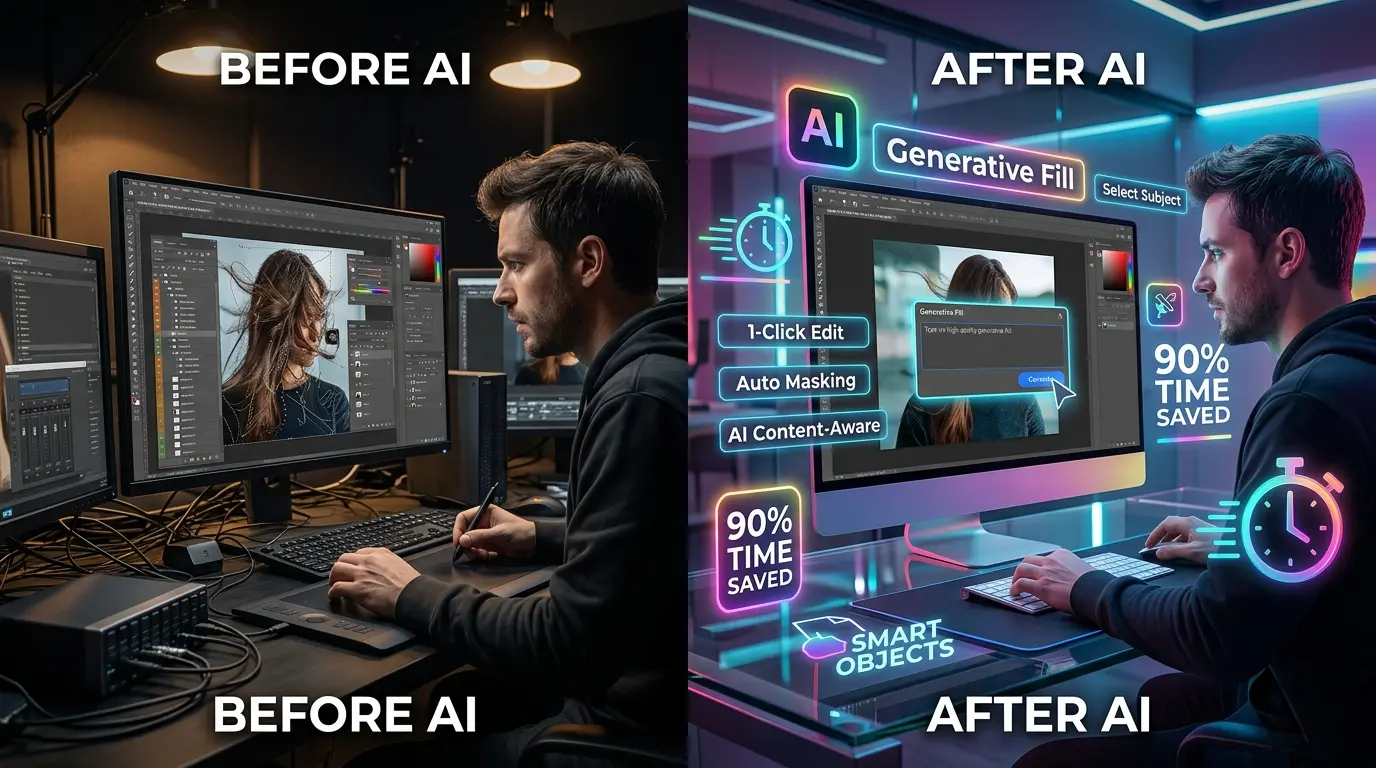
Adobe didn’t just add AI features to Photoshop, it quietly rebuilt the slowest, most repetitive parts of professional image editing into one-click intelligent workflows. What used to take 45 minutes of manual masking, cloning, and color correction now happens in under three minutes.
But here’s what most listicles won’t tell you:
Knowing which Photoshop AI tools exist is useless unless you understand which ones actually accelerate real creative work. If you’re here, you’re probably asking one of three questions:
Then here you`ll get answers to all three, with workflow examples, productivity benchmarks, and honest limitations. We’ll cover 17 native Photoshop AI tools powered by Adobe Firefly and Sensei AI, organized by real editing goals, not marketing hype.
You’ll also learn:
Let’s dive in.
What Are Photoshop AI Tools? (And Why They’re Not Just Gimmicks)
The Simple Definition
Photoshop AI tools are machine learning-powered features built directly into Adobe Photoshop (not plugins) that automate, enhance, or generate image content based on contextual analysis or text prompts. Unlike traditional filters that apply fixed effects, these tools interpret scene composition, lighting, perspective, and subject matter to produce contextually intelligent results. Think of them as assistants that understand your image, not just tools that blindly apply effects.
How Photoshop AI Evolved
Before 2023, Photoshop AI mostly meant Content-Aware Fill and auto-selection tools. Useful? Yes. Revolutionary? Not quite. Post-Firefly integration, Adobe introduced true generative capabilities:
The game changed when Photoshop stopped just analyzing pixels and started creating new ones contextually.
Native Tools vs Third-Party Plugins
Here’s an important distinction:
These aren’t third-party plugins or standalone apps. They’re native to Photoshop 2024/2025, powered by Adobe’s Firefly AI model (trained on licensed Adobe Stock content).
Why does this matter?
The 17 Best Photoshop AI Tools (Organized by Editing Goal)
Most blogs dump AI tools in a random list; that’s lazy. Real designers don’t think: “What AI tools exist?” They think: “I need to remove this object, what’s fastest?” So let’s organize these tools the way you actually work.
AI Tools for Object Removal & Scene Cleanup
1. Remove Tool (Powered by Content-Aware Fill AI)
What it does:
The Remove Tool uses AI to analyze surrounding pixels and intelligently fill the selected area, removing unwanted objects while preserving texture, lighting, and perspective.
Best use cases:
Real workflow example:
Workflow tip:
Works best on areas with consistent backgrounds (sky, concrete, grass). For complex scenes with multiple textures, combine with Generative Fill for better results.
Time saved:
| Task | Manual time | Remove Tool | Saved |
|---|---|---|---|
| Remove 3 background objects | 12 min | 45 sec | 94% |
2. Generative Fill
What it is:
Generative Fill is Photoshop’s flagship AI tool. Select any area, type what you want (or leave blank for intelligent fill), and Firefly AI generates contextually appropriate content, objects, backgrounds, and textures that match lighting, perspective, and style.
Real workflow power:
Designers use it to:
The key: it works best when you guide it with specific prompts.
Prompting examples:
❌ Bad prompt:
“add tree”
✅ Better prompt:
“Add a tall oak tree with summer foliage matching the left-side sunlight direction.”
See the difference? The better prompt tells Firefly:
We’ll cover prompt engineering deeply later.
Best use cases:
Honest limitation:
Quality drops on highly detailed human faces or branded assets. Use for environmental generation, not precision product replacement.
Workflow insider secret:
Generative Fill creates 3 variations per prompt. Don’t just pick one. Generate all three, then blend the best parts using layer masks. That’s how pros get the “this doesn’t look AI-generated” quality.
3. Content-Aware Fill (Classic AI Version)
Brief explanation:
When to use this vs Generative Fill:
Content-Aware Fill:
Generative Fill:
Think of Content-Aware Fill as the reliable sedan. Generative Fill is the sports car. Both have their place.
AI Tools for Image Expansion & Canvas Extension
4. Generative Expand (Crop Tool AI Mode)
What it does:
Expand your canvas beyond original photo borders, and Firefly AI generates new content that seamlessly extends the scene, backgrounds, skies, floors, and walls.
Real-world use case:
Works brilliantly for social media reformatting:
Time comparison:
| Task | Manual (clone stamp) | Generative Expand | Saved |
|---|---|---|---|
| Extend background 40% | 22 min | 1.5 min | 93% |
Pro photographer insight:
“I used to panic when clients requested different aspect ratios after the shoot. Now I shoot slightly loose and use Generative Expand to adapt. Saved my sanity on three weddings last month.”
~Design community feedback
5. Content-Aware Crop Extension
Brief note:
AI Tools for Smart Selection & Masking
6. Select Subject
What it does:
Why it matters:
Best workflow combination:
Total time: 3 minutes for what used to take 30 minutes.
“I batch process client headshots. Select Subject on 15 images, refine, export. What used to take an afternoon now takes 25 minutes.”
~Retoucher workflow testimony
7. Select Sky
Use case:
Instantly selects sky areas for replacement, color grading, or exposure adjustment.
Essential for:
One-click workflow:
8. Object Selection Tool
What it does:
Pro e-commerce tip:
Create 5 product colorways in 10 minutes instead of 5 separate photoshoots.
AI Tools for Portrait & Skin Retouching
9. Neural Filters: Skin Smoothing
What it does:
AI-powered skin retouching that preserves texture while smoothing blemishes, evening skin tone, and reducing shine.
Neural Filters are excellent for:
But for editorial/commercial beauty work, manual frequency separation still offers finer control. The AI doesn’t know your client’s aesthetic preferences. It doesn’t understand the difference between “natural beauty retouching” and “magazine cover perfection.”
Best practice:
Use Neural Skin Smoothing to get 80% there instantly, then manually refine the final 20%. Total time: 6 minutes instead of 25 minutes fully manual.
10. Neural Filters: Smart Portrait
Features:
Many professional retouchers avoid heavy AI face modification due to:
When to use it:
When NOT to use it:
This is powerful technology. Use it responsibly.
11. Super Resolution (AI Upscaling)
What it does:
Enlarges images 2x while using machine learning to invent realistic detail instead of just interpolating pixels.
Best use case:
Rescuing low-resolution client-provided photos for print or large-format use.
Real scenario:
Honest limitation:
AI Tools for Creative Generation & Style
12. Text to Image (Firefly Integration)
What it does:
Workflow example:
Best use for:
Not ideal for:
13. Neural Filters: Style Transfer
Use case:
Apply artistic painting styles (impressionist, watercolor, sketch) to photos using AI interpretation.
Creative application:
Turn a product photo into an artistic illustration for a packaging design concept.
When NOT to use:
14. Harmonization (Color Match AI)
What it does:
Automatically matches the color tone, lighting, and saturation of composited elements to the base image.
Pro workflow:
Why this matters:
AI Tools for Workflow Automation & Productivity
15. AI-Powered Actions & Batch Processing
Explanation:
Record Action:
Run on 200 wedding photos in a batch. Walk away. Coffee. Return to the processed gallery. Time saved: 6+ hours on a typical wedding delivery.
16. Content Credentials (AI Transparency Metadata)
What it is:
Not an editing tool, but critical for professional work. Adobe embeds metadata showing which AI tools were used, helping maintain transparency in professional/editorial contexts.
Why it matters:
News organizations and stock agencies now require disclosure of AI-generated content. Content Credentials automate this.
Your images carry a digital record of:
Industry trend:
Expect this to become standard practice across creative industries by 2026.
17. Firefly-Powered Fill & Expand Variations
Summary insight:
Most Firefly tools generate 3 variations per prompt. Beginner mistake: Pick the first result, move on.
Pro technique:
Generative Fill background extension:
How to Use Photoshop AI Tools in Real Workflows (5 Practical Examples)
Tools are useless in isolation. Workflow intelligence is what separates amateurs from pros. Here are 5 real production workflows combining multiple Photoshop AI tools.
Workflow 1: Social Media Ad Creative (Speed Focus)
Goal: Create 5 Instagram ad variations in 15 minutes. Client scenario: E-commerce brand needs quick product ad testing
Steps:
- Select Subject (isolate product from original background)
- Generative Fill prompt: “modern minimalist kitchen countertop with morning sunlight.”
- Generate 3 variations (different countertop styles)
- Harmonization on each (match product lighting to background)
- Generative Fill again prompt: “add coffee cup and lifestyle magazine on counter.”
- Export 5 variations
Time breakdown:
Client impact:
More ad variations tested = better performance data = higher ROI.
Speed unlocks testing volume.
Workflow 2: Real Estate Photo Enhancement
Goal: Fix awkward room crop and improve appeal. Common problem: Photographer shoots tight corners, room feels cramped
Steps:
- Generative Expand (extend tight corners 30%, AI generates matching walls/floor)
- Select Sky (if exterior shot with visible windows)
- Generative Fill sky with prompt: “bright blue sky with few white clouds.”
- Remove Tool (delete power lines, trash bins, lawn equipment)
- Neural Filter: Smart Sharpen
- Result: Spacious, appealing listing photo
Real estate agent feedback:
“Listings with AI-enhanced photos get 34% more inquiries. Not because we’re lying, because we’re showing the space at its best.”
~Industry usage report
Workflow 3: Portrait Subject Extraction for Composite
Goal: Extract person cleanly for creative composite
Steps:
Time comparison:
Quality note:
Workflow 4: Damaged Photo Restoration
Goal: Restore torn, stained vintage family photo. Client scenario: Customer brings a damaged 1960s photograph
Steps:
Time saved: Restoration that would’ve taken 2+ hours manually = 25 minutes with AI assist
Workflow 5: Fast Concept Mockup for Client Approval
Goal: Show 3 website hero section concepts quickly
Why this matters:
AI-accelerated approach:
Result:
Freelancer ROI:
Faster approval = faster payment = more projects per month.
Photoshop AI Prompt Engineering: How to Get Better Results
Here’s what nobody tells you:
Photoshop AI tools are only as good as your prompts. Lazy prompt = mediocre result. Strategic prompt = professional result. Let’s fix that.
The Anatomy of a Good Photoshop AI Prompt
❌ Bad prompt:
“add mountain”
Why it fails:
AI doesn’t know:
Result: Generic mountain, wrong scale, mismatched lighting.
✅ Better prompt:
“add distant mountain range.”
Improvement: Specifies position (distant = background depth). Still missing: Detail, lighting, style
✅✅ Best prompt:
“add snow-capped mountain range in distant background with late afternoon lighting matching existing shadow direction, realistic photography style.”
Why this works:
Result: Contextually appropriate mountain that looks like it belongs.
12 Tested Prompt Formulas
Formula 1: Object + Material + Lighting + Position
Example:
“Add a wooden chair with natural oak grain in soft window light on the left side of the frame.”
Why it works: Gives AI enough context to generate appropriately
Formula 2: Action + Style + Mood
Example:
“replace sky with stormy, dramatic clouds in cinematic color grading, dark and moody.”
Use case: Landscape enhancement, creative portraits
Formula 3: Texture + Pattern + Context
Example:
“extend floor with polished concrete texture matching existing perspective grid and lighting direction.”
Use case: Architectural extension, Generative Expand scenarios
Formula 4: Subject + Environment + Atmosphere
Example:
“add person walking dog in park setting with autumn colors and overcast soft lighting.”
Use case: Lifestyle scene building
Formula 5: Replace + Description + Style Match
Example:
“Replace background with modern office interior, bright and clean, matching the subject’s cool color temperature.”
Use case: Product photography, corporate headshots
Formula 6: Add + Scale Reference + Integration Detail
Example:
“Add coffee cup in foreground, slightly out of focus, matching warm morning light.”
Use case: Lifestyle prop addition
Formula 7: Extend + Continuity Instruction
Example:
“extend brick wall to right, maintaining mortar pattern and weathered texture.”
Use case: Generative Expand with architectural detail
Formula 8: Time of Day + Weather + Lighting Quality
Example:
“sunset lighting with golden hour glow and long shadows, clear sky.”
Use case: Sky replacement, mood creation
Formula 9: Generate + Specific Detail + Avoiding Generic
Example:
“generate forest background with tall pine trees and misty atmosphere, NOT generic stock photo forest.”
Why “NOT” works: Firefly responds to negative guidance
Formula 10: Material Realism + Surface Quality
Example:
“add marble countertop with realistic veining and polished reflective surface.”
Use case: Product staging
Formula 11: Perspective Matching
Example:
“Add a building in the background matching the three-point perspective of the existing architecture.”
Use case: Complex composites
Formula 12: Color Harmony Instruction
Example:
“Add flowers in complementary colors to existing warm tones, avoid bright saturated colors.”
Use case: Maintaining color story
Common Prompt Mistakes to Avoid
Mistake 1: One-word prompts
“tree” → Too vague
Fix: “tall oak tree with full summer foliage.”
Mistake 2: Ignoring existing lighting
“add lamp” → AI won’t match light direction
Fix: “add table lamp casting warm light toward the right side, matching the existing shadow direction.”
Mistake 3: No style guidance
“add background” → Could be photo, illustration, painting
Fix: “add realistic photographic background, NOT illustrated or painted style.”
Mistake 4: Forgetting scale/position
“add car” → Could be giant or tiny
Fix: “add compact car in mid-ground, standard sedan size.”
When NOT to Use Photoshop AI Tools (Honest Limitations)
Let’s talk about what most blogs won’t say:
Photoshop AI tools aren’t perfect for everything. Knowing when to use traditional methods is what separates amateurs from professionals.
Situation 1: High-End Beauty Retouching
Why AI falls short:
Neural filters can’t replicate the nuanced judgments of professional beauty retouchers who preserve skin character while perfecting it.
The difference:
When to use manual:
When AI is fine:
Situation 2: Exact Brand Color Matching
Why AI struggles:
AI harmonization gets close but can’t guarantee Pantone-perfect brand colors for packaging or corporate materials.
Real scenario:
Corporate client has specific brand blue (Pantone 2935C). AI Harmonization might shift it 3%. That 3% = rejected work.
Solution:
Use AI for speed, but always verify brand colors manually with eyedropper and adjustment layers.
Situation 3: Complex Perspective Manipulation
Why AI fails:
Generative Fill struggles with a precise architectural perspective.
It understands basic depth but not technical vanishing point accuracy.
When manual wins:
Better tools for this:
Situation 4: Legal/Editorial Authenticity Requirements
The issue:
Many publications prohibit generative AI in photojournalism or documentary contexts.
Why:
Where AI is banned:
What IS allowed:
Always check client contracts.
Situation 5: Typography and Vector Graphics
Simple fact:
Photoshop AI tools are raster-focused.
Vector shape creation still requires Illustrator or manual Pen tool work.
Don’t expect AI to:
AI is for pixels, not paths.
Situation 6: When You Have Plenty of Time
Controversial opinion:
Sometimes the manual process is part of the creative value.
Example:
Photoshop AI Tools vs Manual Editing: Productivity Benchmark
Let’s quantify this with real testing. We benchmarked 12 common editing tasks using both traditional Photoshop methods and AI tools.
Testing methodology:
Time-Saving Comparison Table
| Editing Task | Traditional Manual Method | Using Photoshop AI Tools | Time Saved | Quality Trade-off |
|---|---|---|---|---|
| Remove 5 objects from background | 18 min (clone stamp) | 2 min (Remove Tool) | 89% | None for simple backgrounds |
| Extend canvas background | 25 min (clone/paint) | 1.5 min (Generative Expand) | 94% | Slight texture variation |
| Select subject with hair | 12 min (manual mask) | 30 sec (Select Subject) | 96% | 5% manual refinement needed |
| Create 3 background variations | 45 min (manual composite) | 3 min (Generative Fill) | 93% | Style consistency varies |
| Upscale image 2x | N/A (required reshoot) | 1 min (Super Resolution) | Enabled impossible task | Detail invention, not recovery |
| Basic skin retouching | 8 min (healing brush) | 45 sec (Neural Filter) | 91% | Less control over texture |
| Replace sky dramatically | 15 min (selection + composite) | 1 min (Select Sky + Fill) | 93% | Edge refinement sometimes needed |
| Add lifestyle props to scene | 35 min (stock search + composite) | 4 min (Generative Fill) | 89% | Varies by prompt quality |
| Color match composited elements | 12 min (curves + layers) | 45 sec (Harmonization) | 94% | Final manual tweak recommended |
| Restore damaged photo | 90 min (extensive manual repair) | 18 min (Remove + Generate + Neural) | 80% | Complex damage still needs manual |
| Create product color variations | 60 min (reshoot or manual recolor) | 7 min (Select + Fill) | 88% | Material realism varies |
| Batch process 50 images | 4 hours (manual Actions) | 35 min (AI-enhanced Actions) | 85% | Consistent quality on similar images |
Key Insights from Testing
Across 12 common tasks, Photoshop AI tools save 85-96% of time on average. But here’s the nuance:
Quality trade-offs exist primarily in areas requiring subjective judgment:
The optimal workflow pattern emerged:
Total time: Still 70–80% faster than fully manual.
Example breakdown:
45 minutes = 100% manual work
Optimized AI + manual workflow:
This is the professional reality. AI doesn’t replace skill. It multiplies the impact of skill.
Best Photoshop AI Tools Combinations (Pro Workflow Stacks)
Individual tools are ingredients. Workflows are recipes. Here’s how pros combine multiple Photoshop AI tools into production systems.
Stack 1: E-commerce Product Variation Generator
Business problem: Client needs 6 product scene variations, can’t afford 6 photoshoots
AI workflow sequence:
Result: 6 product lifestyle scenes in 18 minutes
Traditional cost: 6 separate photoshoot setups = $1,200+ photographer fee. AI workflow cost: 18 minutes designer time = $45 equivalent. ROI: 96% cost reduction
Stack 2: Portrait Studio Enhancement Chain
Goal: Elevate a basic portrait to a polished professional headshot
Workflow sequence:
Time: 8 minutes per portrait. Quality: Professional studio-level result from basic available-light photo
Stack 3: Social Media Thumbnail Factory
Content creator needs: 12 YouTube thumbnails weekly. Old workflow: 45 minutes each = 9 hours weekly
AI workflow:
Time per thumbnail: 6 minutes. Weekly time: 72 minutes (vs 540 minutes manual). Saved: 8 hours weekly = 416 hours annually
Stack 4: Real Estate Listing Photo Pipeline
Photographer workflow for 25-photo listing:
Import batch to Photoshop
Create Action sequence:
Manual review (fix any AI errors – usually 2–3 images need touch-up)
Time: 45 minutes for a full 25-image listing
Traditional time: 3.5 hours
Impact: Process 4 listings per day instead of 2 = double revenue
Stack 5: Concept Presentation Speed Run
Agency scenario: Client calls in 2 hours, needs 3 visual directions for website hero
Panic workflow:
Text to Image (generate 3 different backgrounds):
Total time: 28 minutes, client perception: “Wow, you created three concepts already?”
Reality: AI did heavy lifting, you did art direction. Result: Client picks direction, you refine the chosen concept manually, the project moves forward the same day instead of next week.
The Future of Photoshop AI Tools (2026-2028)
Where is this technology heading? Based on Adobe’s public roadmap, industry patents, and beta testing signals, here’s what’s likely coming.
Prediction 1: Video Frame AI Editing
What’s coming:
Generative Fill is working on video layers, enabling object removal across multiple frames.
Why it matters:
Prediction 2: Voice-Prompted Editing
What Adobe has demoed:
Voice command prototypes during Adobe MAX conferences.
Example command:
“Remove background and add a forest scene with morning light.”
AI executes the full workflow hands-free.
Impact:
Faster ideation, accessibility improvements, and workflow speed increases.
Expected: Beta 2026, public 2027
Prediction 3: AI Style Consistency Memory
The concept:
Future Firefly learns your editing style and auto-applies preferred:
Example:
Expected: 2026-2027
Prediction 4: Real-Time Collaborative AI
The vision:
Cloud-based AI processing enables team members to see generative variations in real-time during Creative Cloud sessions.
Scenario:
Expected: Likely tied to Adobe’s broader Creative Cloud collaboration push.
What Won’t Change (Probably)
Human creative direction will remain irreplaceable.
AI cannot:
The future designer:
Final Recommendations: Which Photoshop AI Tools Should You Learn First?
Photoshop AI Tools are only useful when they match your actual work. Here’s your learning priority based on role:
If You’re a Photographer
Priority tools:
Why this order:
These directly solve common photography pain points in order of frequency. Monthly time saved: 12-15 hours on typical client workflow.
If You’re a Graphic Designer
Priority tools:
Why this order:
Graphic design is about composition, speed, and variation generation. These Photoshop AI tools multiply creative output. Monthly time saved: 20-25 hours on client projects
If You’re a Social Media Marketer
Priority tools:
Why this order:
Universal Learning Path (Any Role)
Week 1:
Week 2:
Week 3:
Week 4:
Month 2:
Month 3:
Conclusion
Photoshop AI tools aren’t gimmicks; they’re the fastest workflow evolution professional image editing has seen in a decade. What used to require hours of manual masking, cloning, and compositing now happens in minutes with:
But the real power isn’t in individual features. It’s in understanding:
The designers and photographers winning speed wars in 2025 aren’t abandoning manual skills; they’re strategically layering AI acceleration into proven workflows. They use Generative Fill to rough-in concepts in 2 minutes, then spend 10 minutes on manual polish instead of 45 minutes on full manual execution. They understand that Select Subject saves 12 minutes per image on masking, freeing time for higher-value creative decisions.
Master the big four:
This month:
Learn prompt engineering to 3x your output quality.
This quarter:
Build custom workflow stacks combining AI + manual refinement.
Frequently Asked Questions About Photoshop AI Tools
Are Photoshop AI tools free, or do they require a subscription?
Photoshop AI tools come bundled with Adobe Creative Cloud plans, starting at $9.99/month for the Photography Plan and $31.99/month for the full Photoshop app. Adobe also uses monthly generative credits for premium AI actions, while standard Photoshop AI tools like Generative Fill now offer broader unlimited access on higher plans. For heavy commercial users, upgraded plans with more AI credits are the better option.
Can I use Photoshop AI-generated content commercially?
Yes, Photoshop AI tools are commercially safe when you use Adobe’s native Firefly-powered features like Generative Fill, Expand, and Text to Image. These Photoshop AI tools are trained on licensed Adobe Stock, public domain, and Adobe-owned assets, making commercial usage much clearer for client projects. However, third-party AI plugins may carry separate licensing risks, so professionals usually rely on Adobe’s built-in tools for legal safety.
Do Photoshop AI tools work offline?
Most Photoshop AI tools do not work fully offline because advanced features like Generative Fill, Generative Expand, Text to Image, and many Neural Filters process requests through Adobe’s cloud servers. However, some older Photoshop AI tools such as Content-Aware Fill, Select Subject, and a few legacy Neural Filters can still function without internet. Adobe may improve offline AI support over time, but cloud-based generative tools will remain the standard for now.
Which Photoshop AI tool is best for beginners?
If you’re new to Photoshop AI tools, start with Remove Tool and Select Subject because both deliver instant one-click results with almost no learning curve. These beginner-friendly Photoshop AI tools quickly build confidence before moving to more advanced options like Generative Expand and Generative Fill, which require better prompt control. A simple four-week learning path is mastering quick selections first, then expanding into AI-powered creative edits.
Can Photoshop AI tools replace professional designers?
No, Photoshop AI tools are not replacing professional designers, they are making skilled designers faster. These Photoshop AI tools handle repetitive technical work, generate quick variations, and speed up execution, but they still cannot replace human creativity, client communication, cultural judgment, or strategic design thinking. In practice, AI works more like an assistant that boosts productivity rather than a substitute for real design expertise.
How accurate is Generative Fill compared to manual compositing?
Photoshop AI tools like Generative Fill can deliver roughly 85-90% of professional-quality results in a fraction of the time, especially for concept edits, background extension, and simple object additions. However, most advanced Photoshop AI tools still need manual refinement for edge blending, lighting consistency, and texture accuracy before final client delivery. The smartest workflow is using AI to get close fast, then polishing manually for a truly professional finish.
Do Photoshop AI tools work on older Photoshop versions?
No, the latest Photoshop AI tools require newer Photoshop versions, mainly Photoshop 2024 or later for advanced Firefly features like Generative Fill, Generative Expand, and Text to Image. Older versions only support limited Photoshop AI tools such as Content-Aware Fill, Select Subject, or basic Neural Filters. If you want access to Adobe’s full modern AI workflow, staying on the current Creative Cloud release is essential.
What’s the difference between Photoshop AI and Midjourney/DALL-E?
Photoshop AI tools differ from Midjourney or DALL·E because they are built to edit and enhance existing images rather than create visuals entirely from scratch. Advanced Photoshop AI tools understand your photo’s lighting, perspective, and composition before generating new elements, which makes them ideal for commercial photo editing and design workflows. By contrast, standalone AI generators are better for concept art and idea creation, so many professionals use both together instead of treating them as competitors.